MCP Connection Block
Someone else has already built an MCP server — a program that exposes a set of actions an AI assistant can call, like "create a customer" or "search products." The MCP Connection block (/mcp-client) lets you connect to that server and try those actions out from inside a .void file, the same way you'd send a REST request to explore an API. It's for exploring and testing someone else's server — the reverse of the Tool Block, which turns your own requests into a server other people can call.
Works with servers you can reach over the network — a remote URL, or one running on localhost — not a server that only runs as a local process on your machine (no support for that kind yet).
Setting it up
- Server URL — the server's address, e.g.
http://localhost:3000/mcp. - Type — what kind of thing you want to call: Tool, Resource, or Prompt. These are the three kinds of things an MCP server can offer:
| Type | Plain-language meaning |
|---|---|
| Tool | An action the server can perform, e.g. create_customer or send_email. Most servers are mostly tools. |
| Resource | A piece of data you can read, identified by a URI, e.g. a file or a database record. |
| Prompt | A ready-made prompt template the server hands you, with its own named inputs. |
As soon as you enter a Server URL, Voiden quietly asks the server what it offers and fills a dropdown with the real names — you pick a tool/resource/prompt by name instead of having to know it in advance. If discovery doesn't turn anything up (or you already know the exact name), click Enter manually to type it yourself.
Picking a Tool or Prompt from the dropdown also auto-fills the arguments box below with the right fields for that one, as JSON — edit the values, don't worry about getting the shape right from scratch. A Resource has no arguments box: its URI is the entire input, so there's nothing else to fill in. Values can contain {{...}} placeholders (environment and runtime variables), resolved before the call is sent.
Faker tokens don't resolve inside these arguments yet — planned, not built.
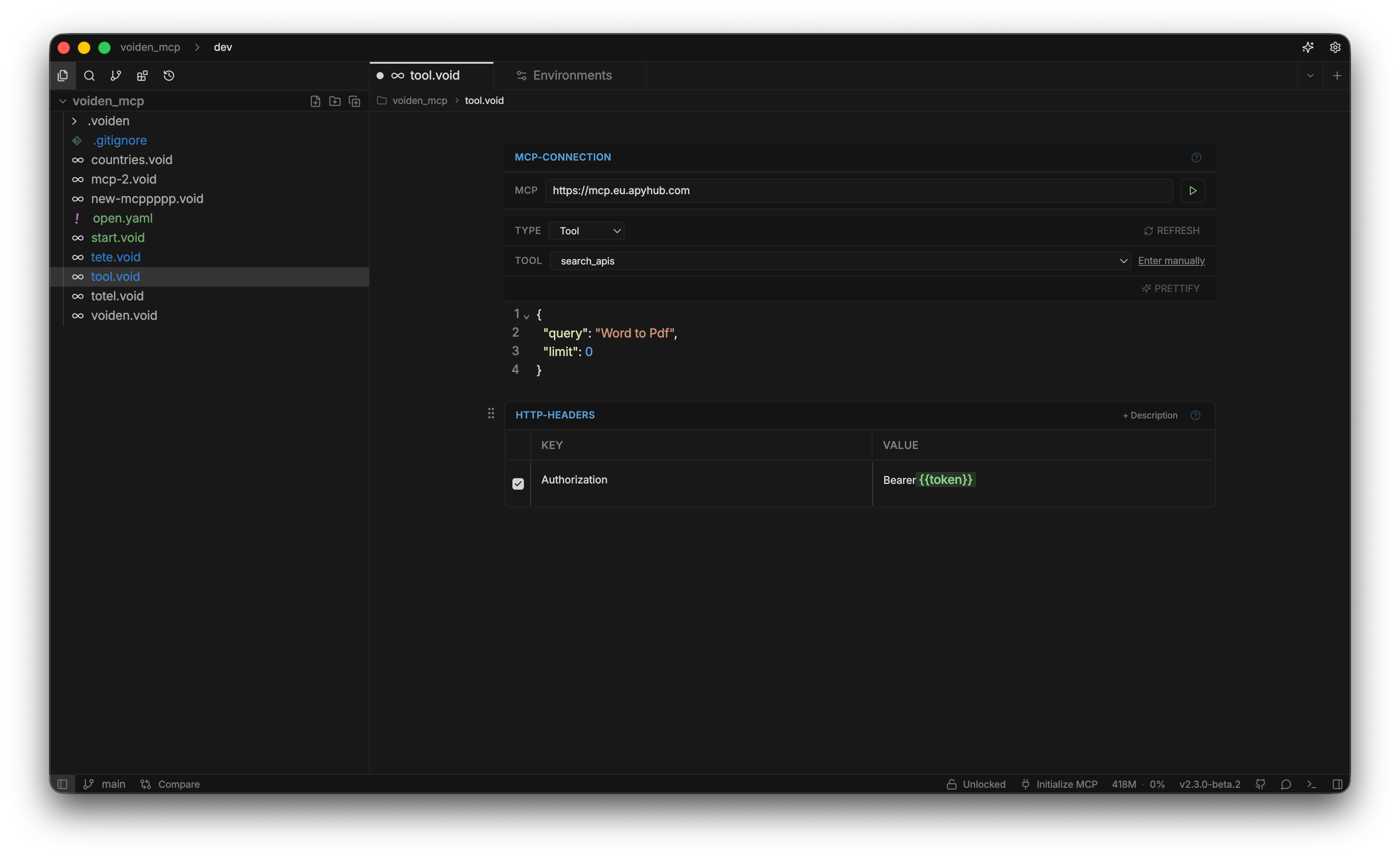
Behind the scenes, Voiden turns your Type + name into the matching call the MCP protocol actually defines (Tool → call_tool, Resource → read_resource, Prompt → get_prompt) — you never need to know or pick these names yourself. The "list what's available" calls (list_tools/list_resources/list_prompts) happen automatically too, every time you open the block or change the URL, to keep that dropdown current — click Refresh to force it to check again.
If the server needs you to sign in
Some servers won't let anyone in without login. If Voiden detects that (a 401 response), it shows an Authorize button next to the Type picker instead of a plain error. Click it and your normal web browser opens for you to sign in — Voiden picks up the result automatically once you're done, no token to find and paste in yourself.
Auth and Headers
For servers that use a simpler login method than the button above (an API key, a bearer token you already have, Basic auth), reuse Voiden's existing Auth block and Headers table — nothing new to learn. Inherited auth from a .voiden-inherited.void file also applies.
Importing from an existing config
Already have this server configured in Claude Desktop, Cursor, VS Code, or Windsurf? No need to type the URL and headers again by hand — copy that tool's settings for the server (a block of JSON text) and paste it straight into a .void file:
{
  "mcpServers": {
    "my-server": {
      "url": "http://localhost:3000/mcp",
      "headers": { "Authorization": "Bearer ..." }
    }
  }
}
Voiden detects the paste and fills in the URL and headers automatically. Both {"mcpServers": {...}} (Claude Desktop, Cursor, Windsurf) and VS Code's {"servers": {...}} shape are recognized, and every server in the config becomes its own Connection block — not just the first. An mcp-remote-wrapped entry (npx -y mcp-remote <url> [--header ...]) unwraps into the real remote URL and headers directly, since it isn't a local server, just a stdio↔HTTP bridge.
Response
Running the block sends your call and shows the result in an MCP Response block, with the same Assertions table support (pass/fail checks on the result) as any other response type in Voiden. The body renders through the same viewer every other block uses — syntax highlighting, search, and text selection — and if the server hands back JSON as plain text (common with MCP servers), Voiden detects that and pretty-prints it automatically instead of showing one long line.
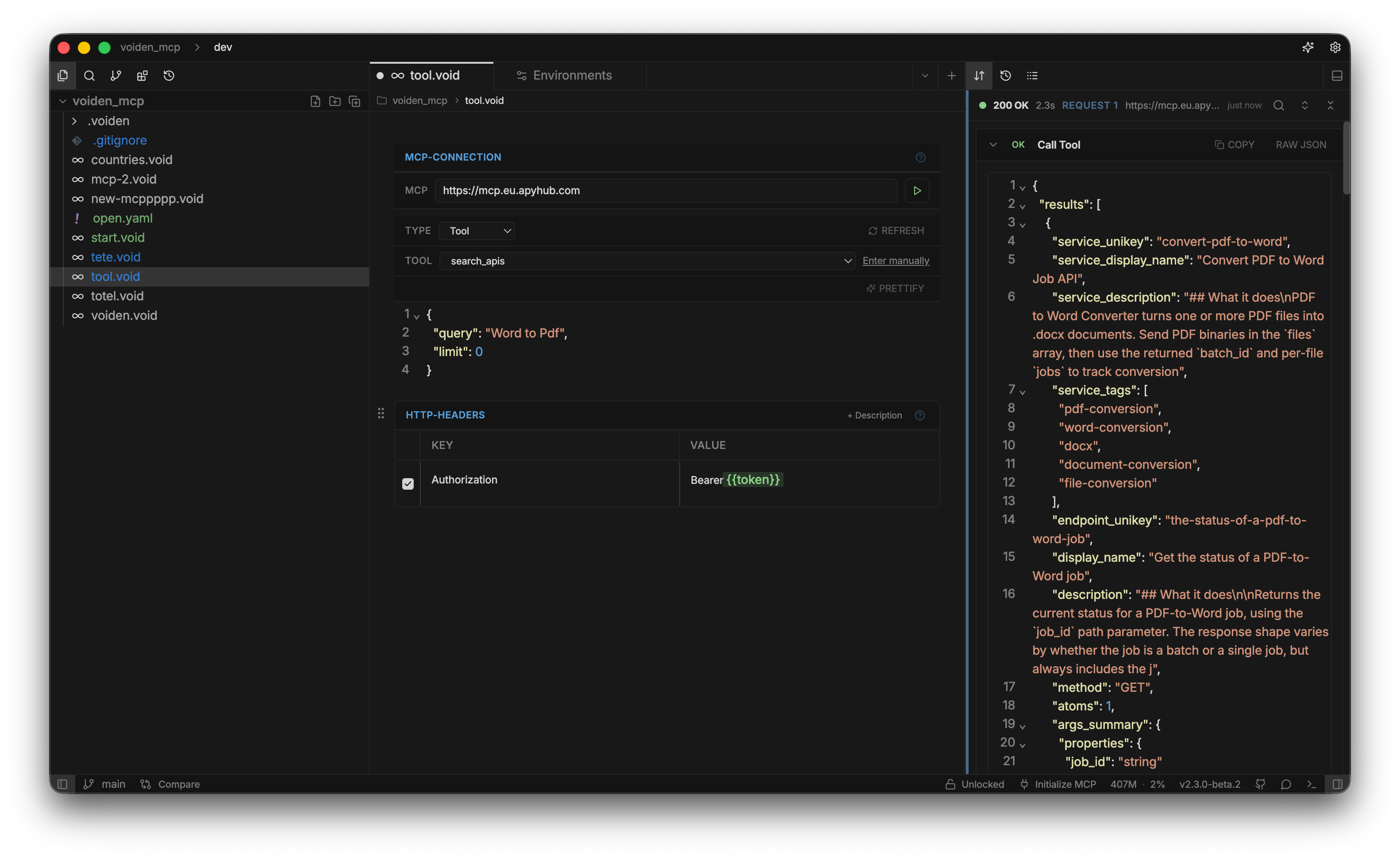
Try it Out
- Type
/mcp-clientand press Enter. - Enter the Server URL and wait a moment — Voiden discovers what the server offers.
- Leave Type on Tool, pick one from the dropdown, and adjust the auto-filled JSON arguments if needed.
- Run with Cmd + Enter / Ctrl + Enter and inspect the response.
- If you see an Authorize button instead of a tool list, click it, sign in, and the dropdown fills in once you're back.
Summary
The MCP Connection block lets you connect to and test any MCP server reachable over the network from a .void file — pick a Tool, Resource, or Prompt by name from an auto-discovered list, and reuse Voiden's existing auth, headers, and assertions instead of learning a separate way of doing things.