Voiden CLI
The voiden command doubles as the app launcher (voiden ~/Documents opens that folder in the GUI) and a small, headless command surface — agent, run, and a hidden mcp-stdio — bundled directly into the Voiden app itself. Nothing extra to install: the packaged app's own binary bundles Node, so voiden dispatches straight into it.
This is deliberately a different, smaller thing than the other two Voiden CLIs:
| What it's for | Install | |
|---|---|---|
voiden (this page) | Register a project with an agent editor, and run .void files headlessly — the everyday, always-available case | Comes with the Voiden app, nothing extra |
@voiden/mcp | Publish /tool-tagged requests as a real, standalone, independently-hostable MCP server | npx @voiden/mcp |
@voiden/runner | The full-power headless runner — CSV export, mail reports, session state, CI/CD flags — for CI servers with no Voiden app installed | npm install -g @voiden/runner |
If you just want an agent editor (Claude Code, Codex) to be able to run requests in a project, or you want to run .void files from a terminal without installing anything extra, this is the CLI you want. For publishing /tool blocks as a hostable API surface, see Publishing with @voiden/mcp.
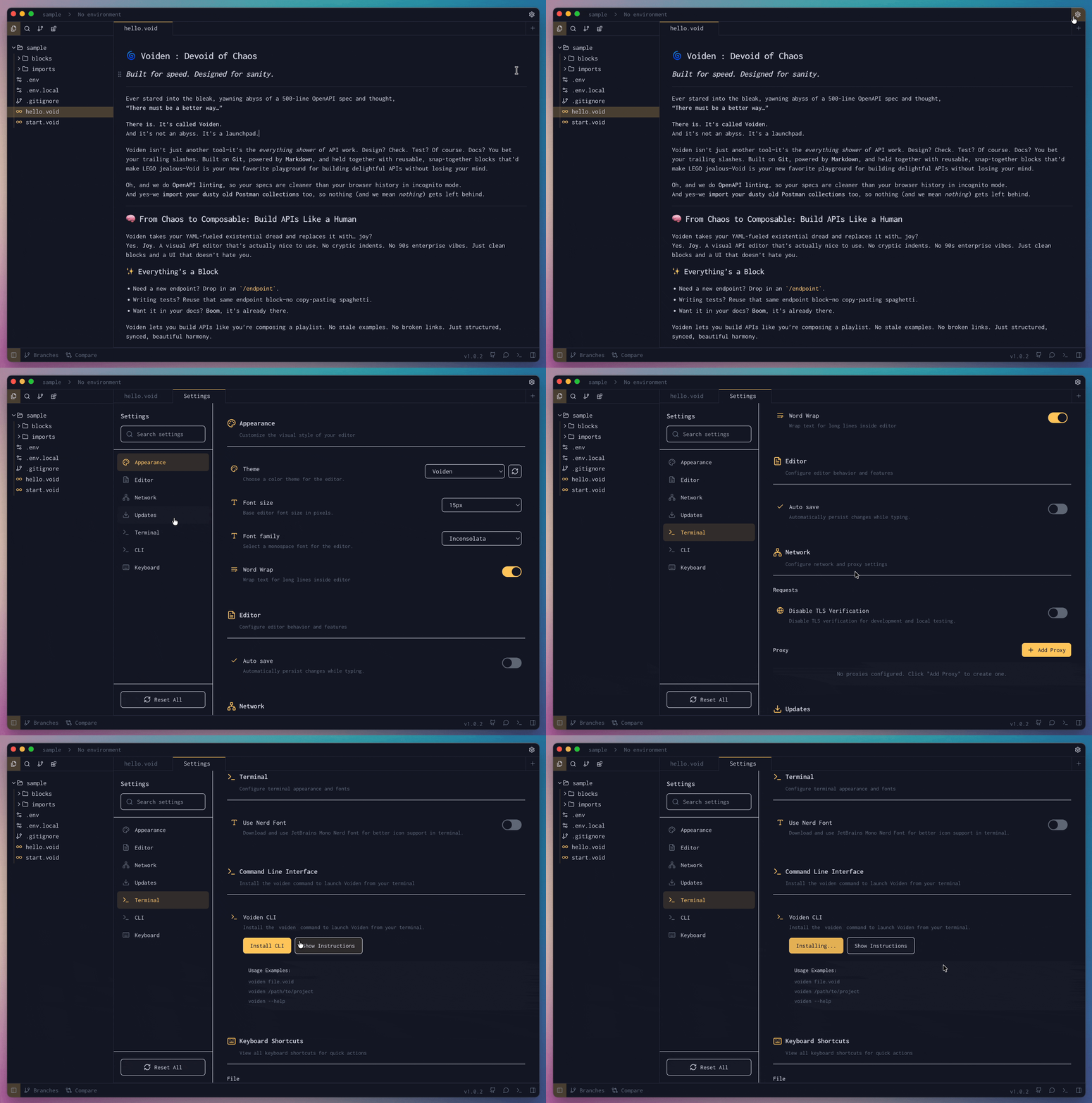
Installing
Opening the GUI
Open the terminal and type voiden, optionally pointed at a path:
voiden                 # Open Voiden
voiden ~/Documents     # Open Documents directory
voiden myproject       # Open myproject from the current directory
voiden file.txt        # Open a file as a tab
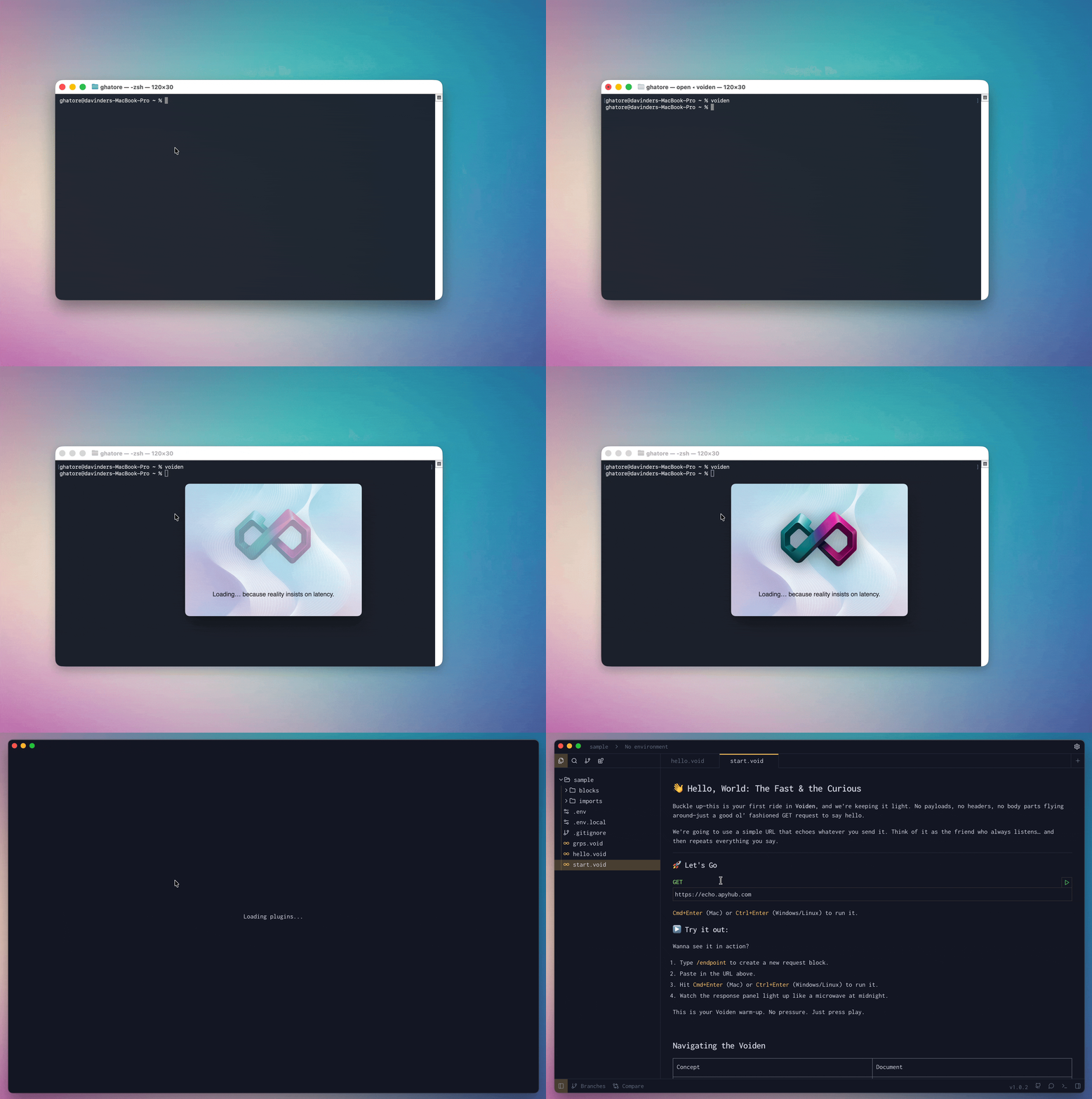
agent, run, and mcp-stdio are checked for first, before anything else — voiden agent ./api runs the CLI command; voiden ./api (no recognized subcommand) opens ./api in the GUI, same as always.
Commands
| Command | Purpose |
|---|---|
voiden agent [path] | Register this project with Claude Code and/or Codex |
voiden run <paths...> | Run .void files headlessly and print/return the results |
voiden mcp-stdio [path] | (hidden — not shown in --help) The stdio MCP server voiden agent itself registers |
voiden [path] / voiden | Everything else — opens the GUI |
voiden -v / --version | Print the installed version |
voiden -h / --help | Show the top-level help (agent/run have their own --help) |
voiden agent — register with an agent editor
voiden agent [path] [options]

Options:
  --claude          Claude Code only
  --codex           Codex only
  --remove          Remove the registration instead of adding it
Writes .mcp.json (and the Codex config.toml equivalent) so Claude Code / Codex knows to start a small MCP server for this project, and picks up 6 fixed tools:
list_void_files— see which.voidfiles exist in the projectlist_requests— see what requests a file contains, without running anythingrun_request— actually execute a request and return a structured resultwrite_result— record a result back into the.voidfile as aresponseblocklist_environments— discover the env profiles/environments this project has (.voiden/env-*.yaml, or a plain.envfallback), including nested environments as dotted paths (e.g.staging.eu)select_environment— pick a profile (+ optional environment within it) as the default env for everyrun_requestcall for the rest of the session — returns variable keys only, never values, since a*-private.yamlfile can hold real secrets
Examples:
voiden agent                    # register this directory, both Claude Code and Codex
voiden agent ./api --claude     # Claude Code only
voiden agent --remove           # undo registration
What actually gets written
{
  "mcpServers": {
    "voiden-mcp": {
      "command": "voiden",
      "args": ["mcp-stdio", "/absolute/path/to/the/project"]
    }
  }
}
command is voiden itself — recursively invoking the same binary as a small internal MCP server exposing the 6 fixed tools above. This never points at @voiden/mcp — that's a separate, standalone server for publishing /tool blocks as an API surface, not what an everyday "let an agent run requests in this project" session needs. See Publishing with @voiden/mcp for that distinction in full.
The Voiden app's own status bar Initialize MCP button does exactly what voiden agent does — clicking it and running voiden agent from a terminal never disagree about what gets written under .mcp.json's voiden-mcp key. See Initialize MCP for the app-side walkthrough.
CI machines with no Voiden app installed use voiden-runner mcp install instead — same registration, same 6 tools, fully standalone (points at voiden-runner mcp serve, not this CLI).
voiden run — run .void files headlessly
voiden run <paths...> [options]

Options:
  -e, --env <path>          Path to a .env or .yaml file for variable substitution
  --environment <name>      Scope --env to one named environment in a multi-environment
                             YAML file (e.g. "dev") instead of merging every environment
                             in it together
  --show-req                Print sent request headers and body for each request
  --show-res                Print response headers and body for each request
  --bail                    Stop immediately on the first failure and exit 1
  --json                    Output results as JSON (suppresses normal output)
Accepts files, directories (recursive), or a mix:
voiden run auth.void
voiden run ./requests/
voiden run ./ --env .env.staging --bail
voiden run ./ --env .voiden/env-public.yaml --environment staging
voiden run ./ --show-req --show-res
Sample output:
[1/1] firstrequest.void
  ✔  REST GET    https://echo.voiden.md  200 OK  550ms  434B
       ⏳ request:
           url:    https://echo.voiden.md
           method: GET
         headers:
           key1: hello-world
         body:
           { "test": "test" }
       ⏳ response:
         headers:
           content-type: application/json; charset=utf-8
         body:
           {"headers":{...},"body":{},"query":{},"method":"GET","path":"/"}

────────────────────────────────────────────────────────────────
  Summary  1 request  ·  1 passed  ·  0 failed  ·  569ms total
────────────────────────────────────────────────────────────────
This is deliberately a lightweight subset, not a full replacement for @voiden/runner run. CSV export, mail reports, session/runtime-variable persistence across runs, and other power-user flags stay exclusive to the standalone @voiden/runner package — install that separately (npm install -g @voiden/runner) for CI pipelines or heavier local use. Both share the exact same execution engine, so results never differ between the two — only the flag surface does.
Environment variables & multiple profiles
Nothing is auto-loaded — voiden run never scans .voiden/ on its own. Pass --env <path> explicitly, pointing at either format:
Plain .env:
test=hello-world
YAML — two shapes work:
# flat — simplest for a standalone file
test: hello-world
# nested, matching the app's own .voiden/env-public.yaml shape
dev:
  variables:
    test: hello-world
staging:
  variables:
    test: staging-value
For the nested shape, --environment <name> matters: without it, every top-level environment in the file gets merged into one flat set (last one processed wins on a key collision) — with it, only that one named environment's variables are used, the same way the Voiden app itself resolves one active environment at a time. Point --env straight at your real .voiden/env-public.yaml/env-<profile>-public.yaml and add --environment dev (or whichever name) to select a specific one; a name that doesn't exist in the file fails with a clear error listing what's actually available, instead of silently resolving to nothing (or the wrong thing).
A relative --env path resolves from wherever you run the command, not from the .void file's own directory.
voiden mcp-stdio — hidden, internal
voiden mcp-stdio [path]
Not shown in --help — this is what .mcp.json's command/args actually invoke, not something to run by hand. Starts a stdio MCP server exposing the same 6 fixed tools voiden agent describes above.
Deliberately does not discover, verify, or serve Tool blocks — that's @voiden/mcp's job alone, a different concern (publishing a capability API) from letting an editor run requests in a project it already has open.
Summary
voiden agent and voiden run cover the everyday case — letting an agent editor run requests in a project you already have open, or running .void files from a terminal with nothing extra installed. For publishing /tool blocks as a real, independently-hostable MCP server, see Publishing with @voiden/mcp; for CI pipelines that need CSV export, mail reports, or session state, see @voiden/runner.