Initialize MCP
Normally, an AI coding assistant like Claude Code or Codex can only read and write your .void files as text — it can't press "Run" for you. Initialize MCP changes that: one click connects your assistant directly to the project you have open, so it can actually execute your requests, check the responses, and save the results back into the file, all on its own.
Two ways to do it
-
Voiden app — status bar → Initialize MCP button.

-
Terminal —
voiden agent. See the CLI docs for options.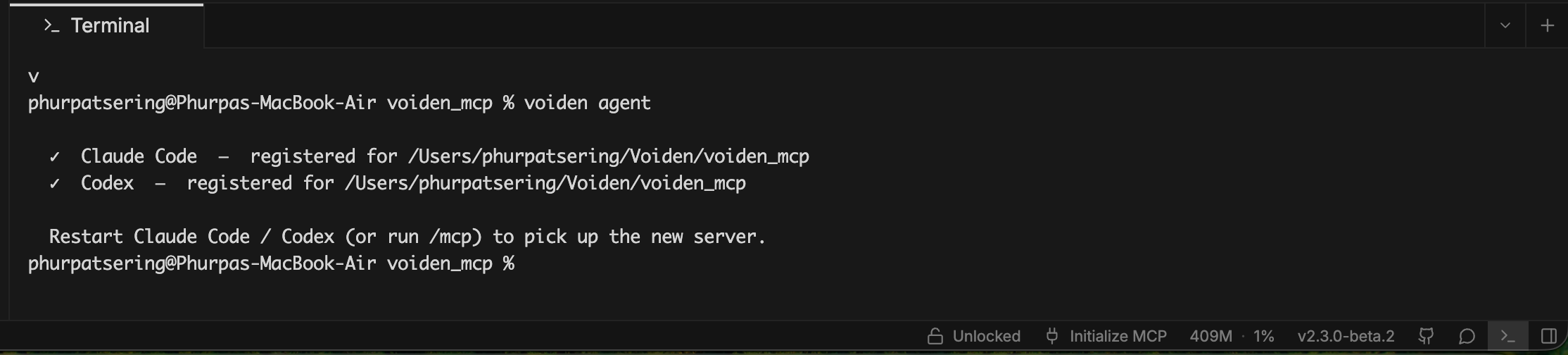
Both do the same thing: register a small MCP server for this project with Claude Code and/or Codex.
| Assistant | Registered in |
|---|---|
| Claude | .mcp.json in your project root |
| Codex | [mcp_servers.voiden-mcp] in ~/.codex/config.toml |
You never need to open or edit these files yourself — they're just where each assistant keeps track of "this project is connected." This is per-project and doesn't carry over automatically — click the button (or re-run voiden agent) again for each new project you want your assistant to run requests in.
What your assistant gets
Six fixed tools, always the same, no matter what your project contains:
| Tool | What it does |
|---|---|
list_void_files | Lists every .void file in the project. |
list_requests | Lists a file's requests, without running anything. |
run_request | Actually runs a request and returns the result. |
write_result | Records a result back into the .void file. |
list_environments | Lists the project's saved environments — the sets of variables you switch between, like "dev" vs "production". |
select_environment | Tells your assistant's future run_request calls this session to use one of those environments by default. It only reports back the variable names it selected, never the actual secret values. |
That's it. No Tool blocks you've declared, and no @voiden/mcp — those are a separate, unrelated flow for publishing your own tools. See Publishing with @voiden/mcp if that's what you're after.
write_result doesn't lock the file while it saves. If you have that same .void file open and unsaved in the Voiden app at the same time your assistant calls write_result, whichever one saves last wins — the other's changes can be lost. Safest habit: save or close a file in the app before asking your assistant to run and record results for it.
Not the same as AI Skill
AI Skill (Settings → AI Skill) teaches your assistant the .void format, so it can write valid blocks — it doesn't register anything or let your assistant execute requests. Initialize MCP is the separate, explicit step for that. See AI Skill for the writing side.
Summary
Click Initialize MCP (or run voiden agent) once per project, and your assistant can list, run, and record .void requests directly — no publishing, no server to host.