Request History
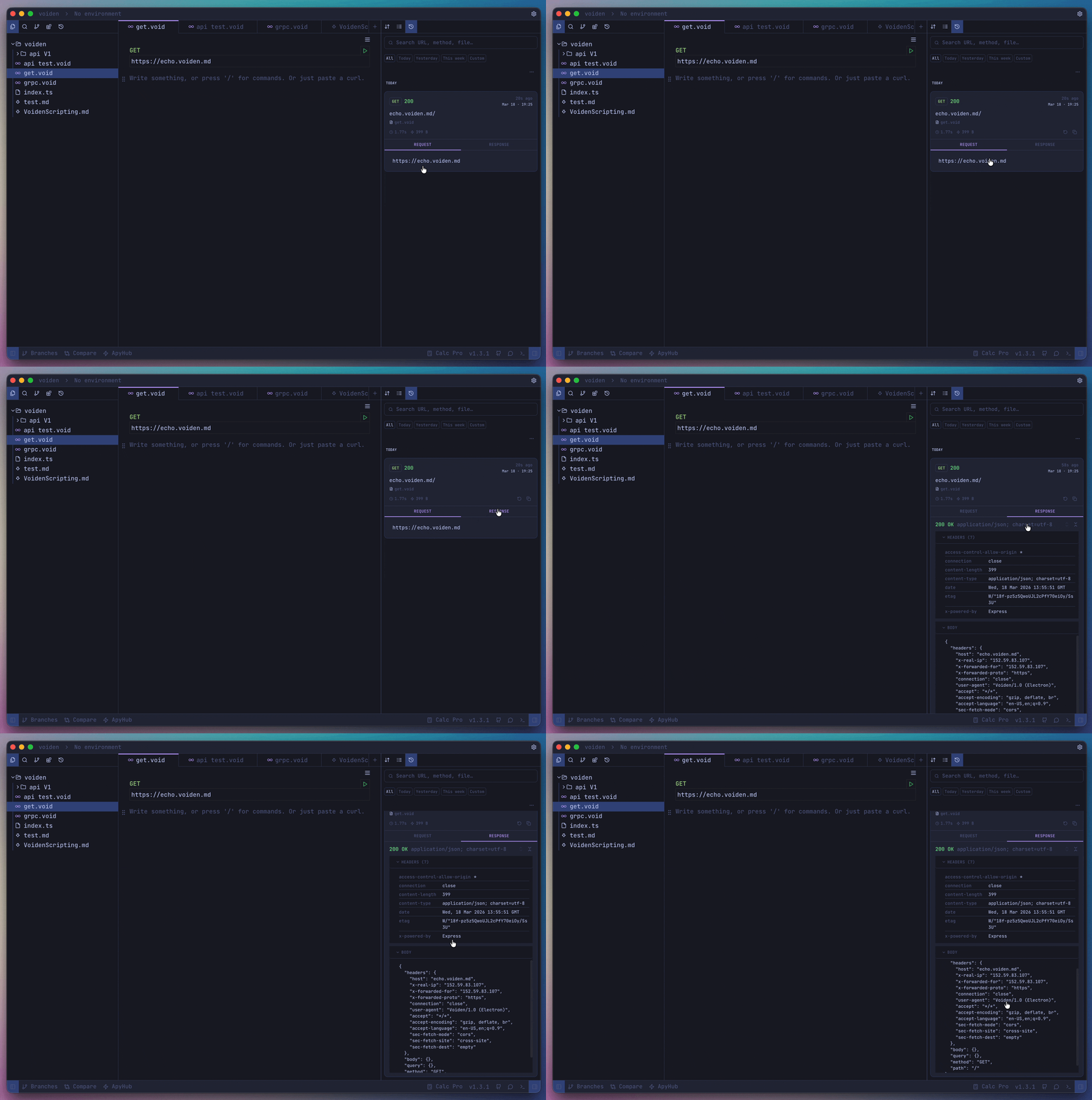
Ever wondered what you sent in that last request? With Request History, you'll never have to guess. Voiden quietly records every request you run, so you can go back, review, replay, or export anything at any time — right from the History tab in the right panel.
What Gets Recorded
Every time you fire off a request, Voiden captures the full picture:
- Request — method, URL, headers, body, and content type
- Response — status code, headers, body, timing, byte size, and any errors
- Timestamp — exactly when it happened
Turning History On
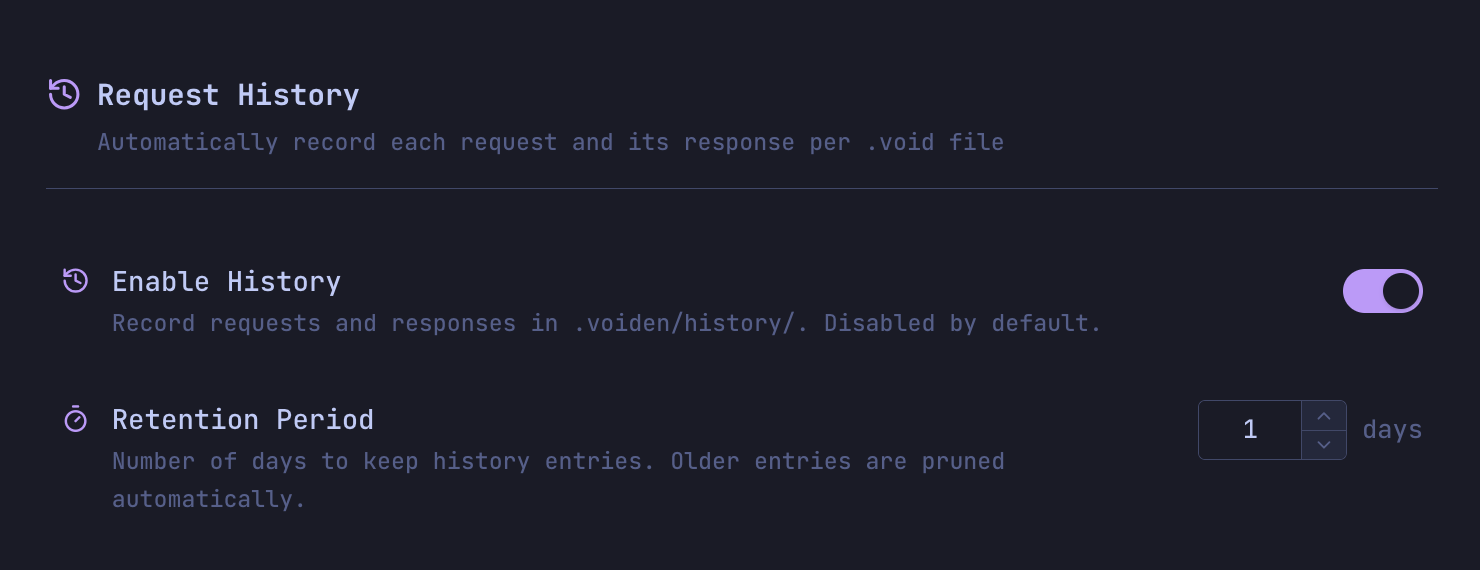
History is off by default, so you'll need to enable it first. Head to Settings → History and turn on Record request history.
While you're there, you can also set Retention days — how long you want to keep history entries (1 to 90 days). It defaults to 2 days once enabled.
How Retention Works
Voiden takes care of cleanup automatically. Every time a new entry is saved or history is loaded, old entries outside your retention window are removed.
For example, with a retention of 2:
- Today and yesterday are kept
- Anything older is quietly pruned
Where History Lives
Your history files are stored locally inside your project, under the .voiden folder:
<project>/.voiden/history/<tab-name>-history.json
Each .void file gets its own dedicated history file, named after the file itself (non-alphanumeric characters are replaced with _).
Voiden automatically adds .voiden to your project's .gitignore whenever history is written or cleared — so none of this local data ever accidentally ends up in your repository.
While a Request is Running
The moment you hit send, the History tab keeps you in the loop:
- A Running indicator appears in the History toolbar
- A pending card shows up as a placeholder while the request is in progress
As soon as the response comes back, the placeholder updates with the real entry and gets saved to disk.
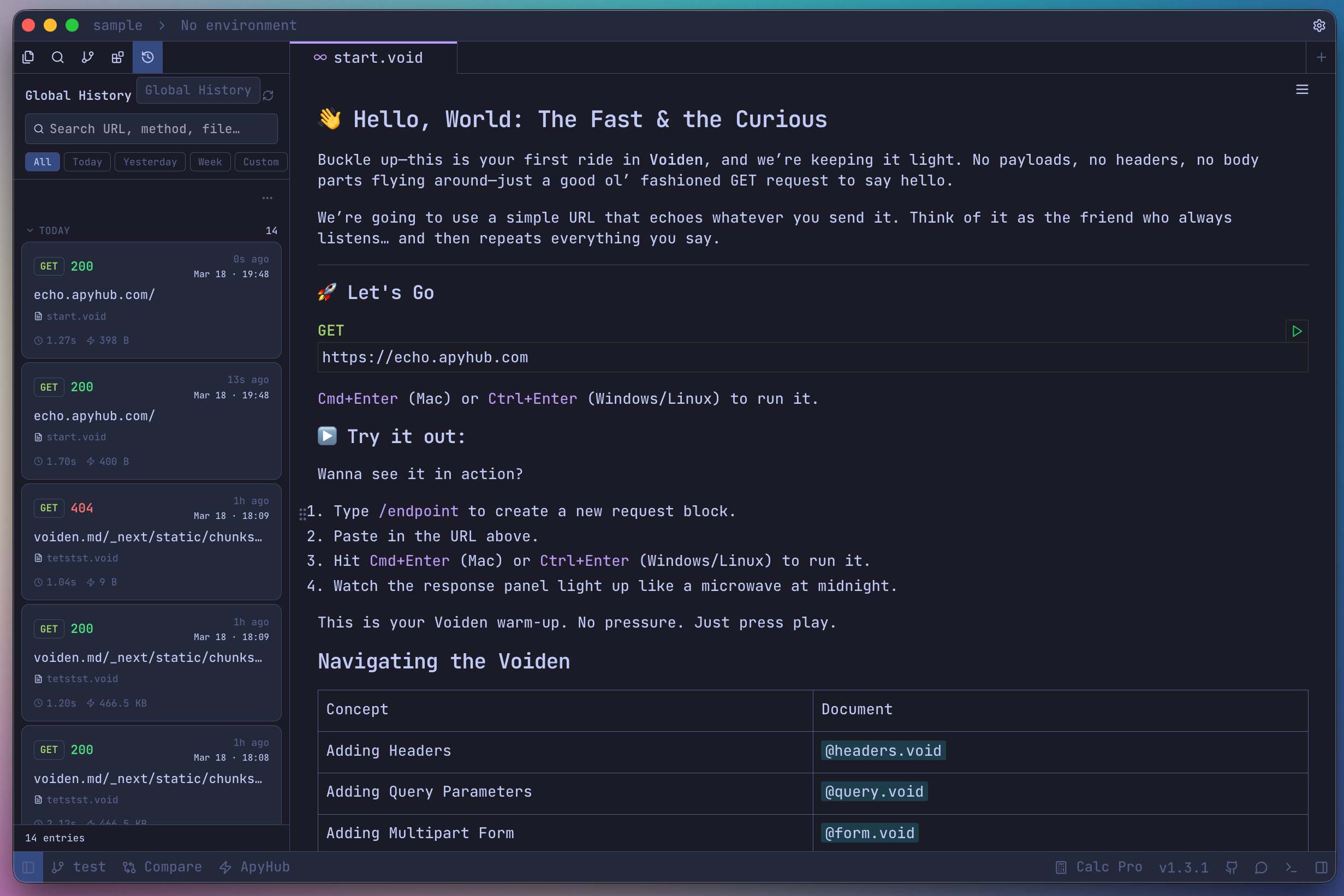
Global History
Want a bird's-eye view of everything you've run? The Global History panel in the left sidebar shows every request you've made across all .void files and tabs — all in one place.
It's handy when you're tracing activity across multiple endpoints and don't want to jump between documents to find what you're looking for.
Using Your History
Open the History tab in the right panel to browse everything recorded for the currently active document.
Actions Per Entry
Each history entry comes with a couple of handy actions:
- Replay — bring the request back to life by importing it as a cURL flow
- Copy as cURL — copy it straight to your clipboard as a ready-to-use cURL command
Toolbar Actions
Need to manage things in bulk? The toolbar has you covered:
- Export — save all or selected entries as
.voidfiles, grouped by day - Clear — remove all or just the ones you select
- Select mode — switch into multi-select for bulk operations
Export Format
Exported files are organized neatly by date, so they're easy to find later:
<project>/<TabName> History/YYYY-MM-DD/<TabName>-HH-MM-SS.void
Troubleshooting
History tab is empty?
- Make sure the active file is a
.voiddocument - Check that Record request history is enabled in
Settings → History - Try running at least one request for that tab
- Make sure your project folder is accessible and writable
Entries are disappearing or look stale?
- Retention pruning runs automatically on every read and write — if you lower the retention value, older entries will be removed on the next load
Switched tabs and history looks out of date?
- History is cached per tab during your session — switching back to a tab you've already visited reuses the cached data
- Close and reopen the tab to force a fresh reload