Settings
Everything you need to make Voiden work the way you want. Tweak your editor, set up your network, connect integrations, and more — all in one place.
General
Default Project Directory
Set the folder where you want your projects to live and Voiden takes care of the rest. Whenever you create a new project, it gets automatically created in that directory. No manual folder picking, no extra steps.
Early Access
Want to try new features before everyone else? Turn this on and Voiden will automatically download and install the latest updates as soon as they're available. Great if you like staying ahead of the curve.
Request History
Controls whether Voiden keeps a record of your past requests. Turn it on to track everything you've run, or turn it off if you'd rather keep things clean and private.
Curious about what history can do for you? Check out the full Request History docs and see what you've been missing.
History Retention
Goes hand in hand with Request History. Set how many days you want Voiden to hold on to your history before clearing it out. Keep it short for a tidy workspace, or set it longer if you like going back to older requests.
Editor
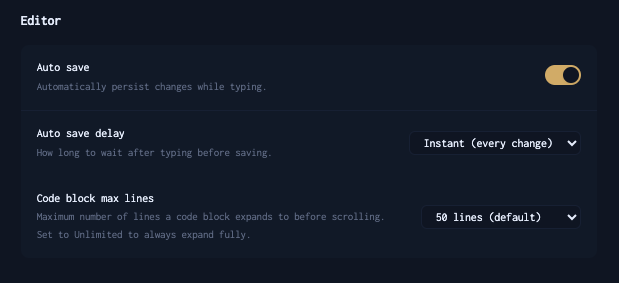
Auto Save
Nobody likes losing work. Turn this on and Voiden saves your changes automatically as you type, so you never have to think about it.
Auto Save Delay
Goes hand in hand with Auto Save. This controls how long Voiden waits after you stop typing before saving. Set it to Instant (every change) and it saves the moment you make a change, no waiting around.
Code Block Max Lines
Controls how many lines a code block expands to before it starts scrolling. The default is 50 lines, which keeps things tidy without hiding too much. Set it to Unlimited if you'd rather see everything at once without any scrolling.
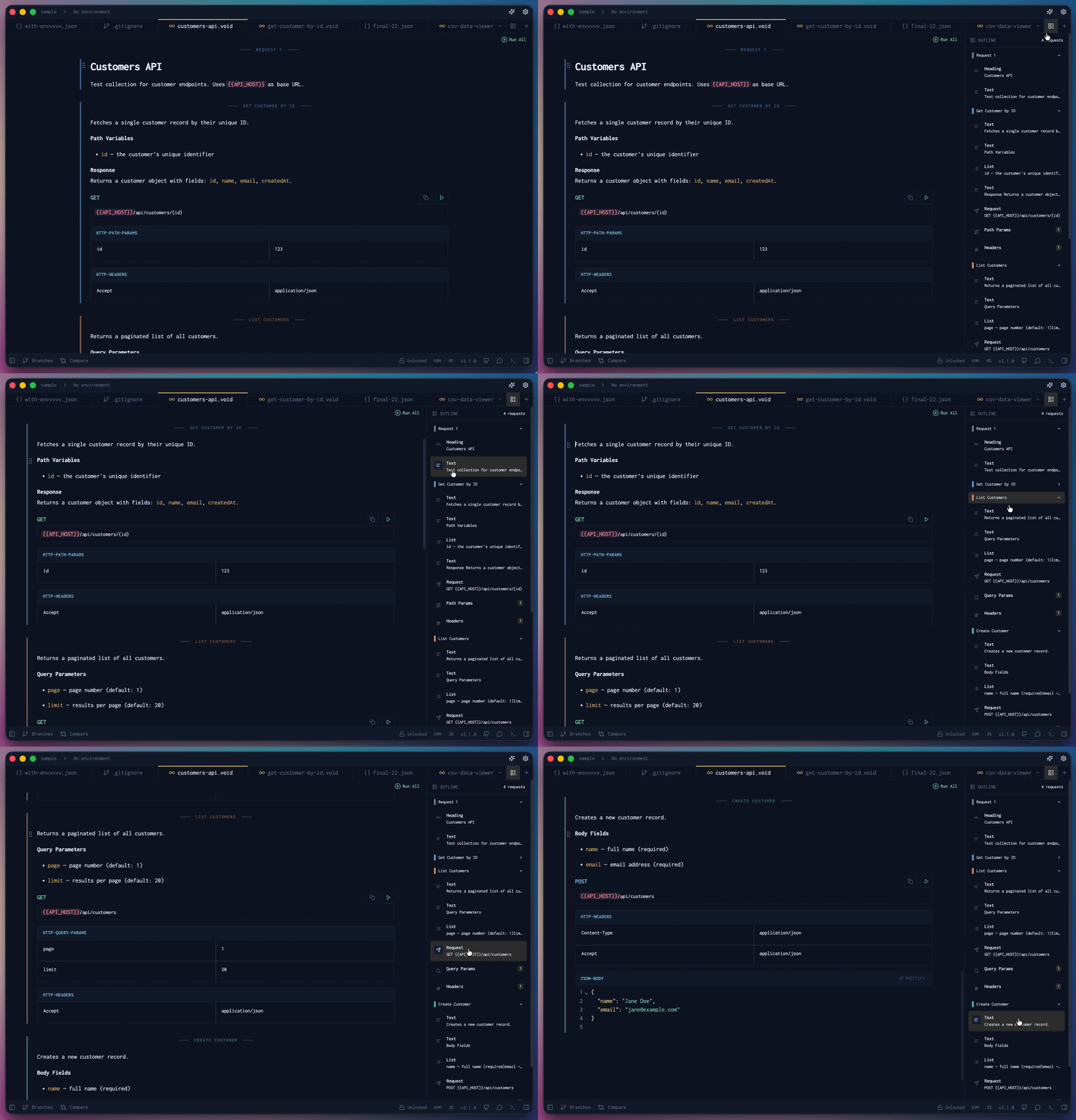
Block Overview
Ever find yourself scrolling through a long file just to get to the right block? Turn this on and Voiden adds a handy button in the top-right corner of the editor. Give it a click and you'll see all your blocks laid out at a glance — just pick the one you want and you're there instantly. No more endless scrolling.
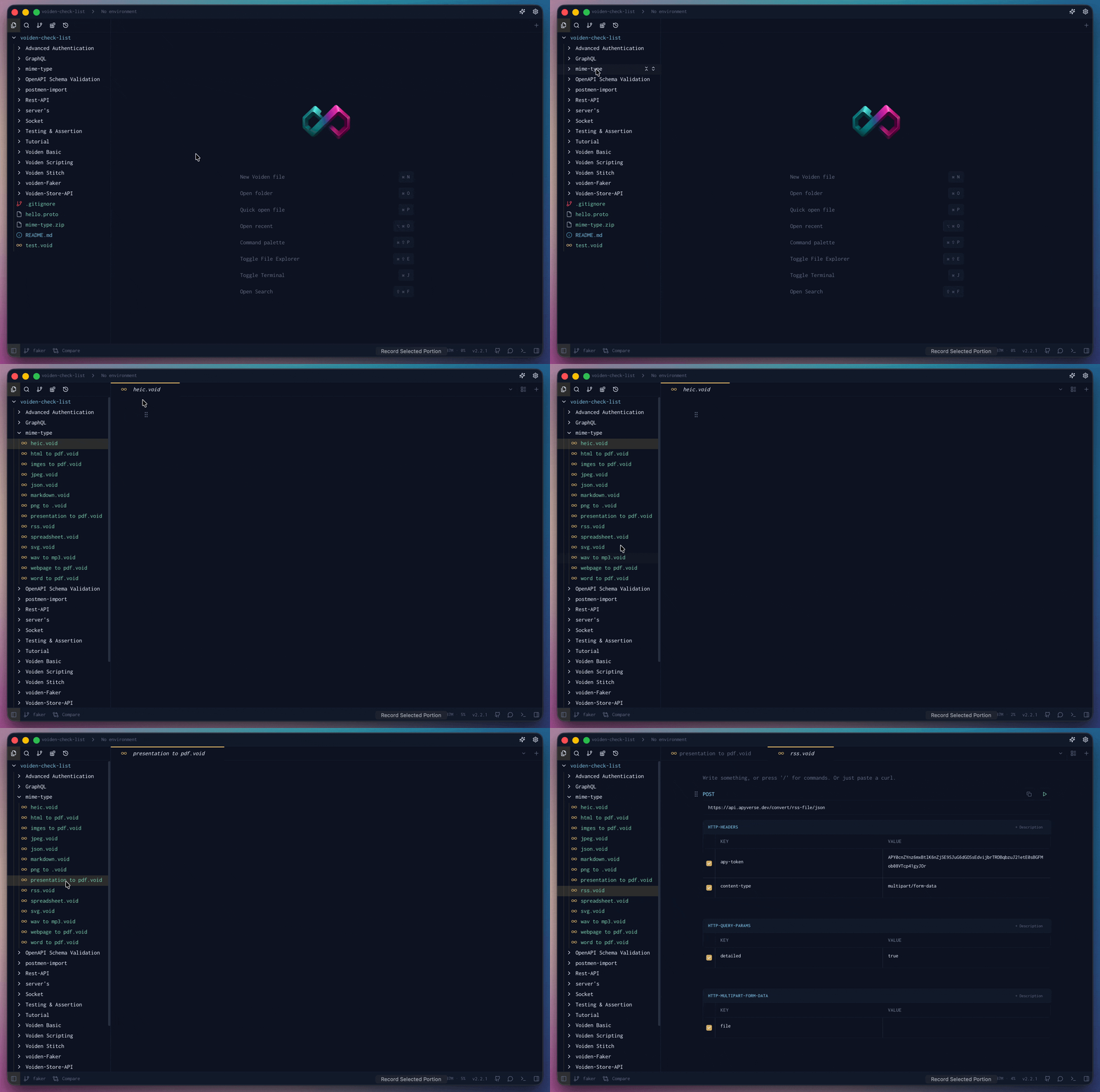
Pending Tabs
Tired of your tab bar filling up every time you're just clicking around to peek at files? Turn this on and single-clicking a file opens it as a pending tab (shown in italics) that gets replaced the next time you click another file. Double-click a tab, or start editing it, to make it stick around. Turn it off if you'd rather every file you open stay pinned right away.
Network
Security Settings
- Disable TLS Verification — Toggle to bypass certificate validation. Only use this in testing environments, not in production.
Proxy Configuration
Need to route requests through a proxy? Set it up here.
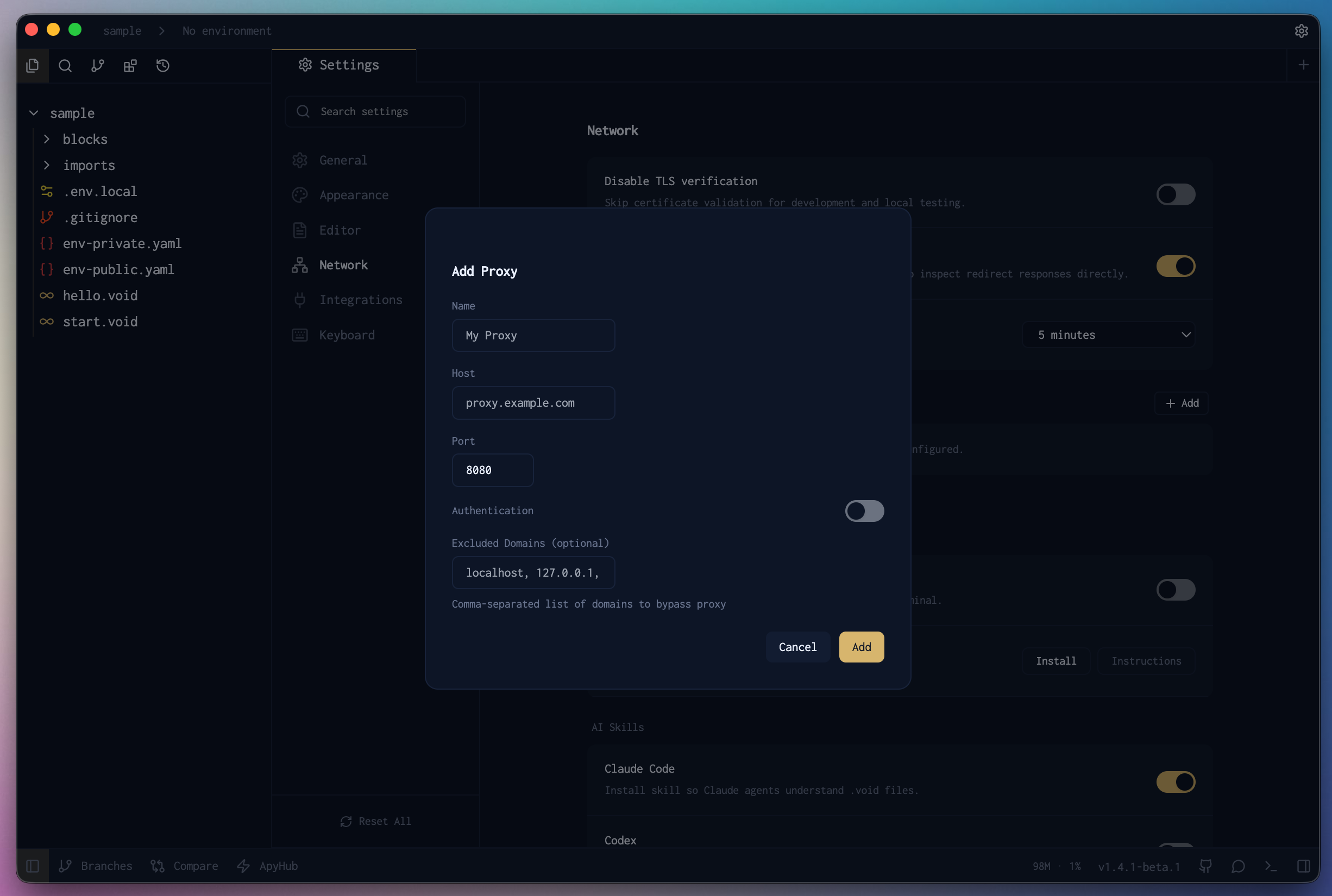
With Authentication Enabled
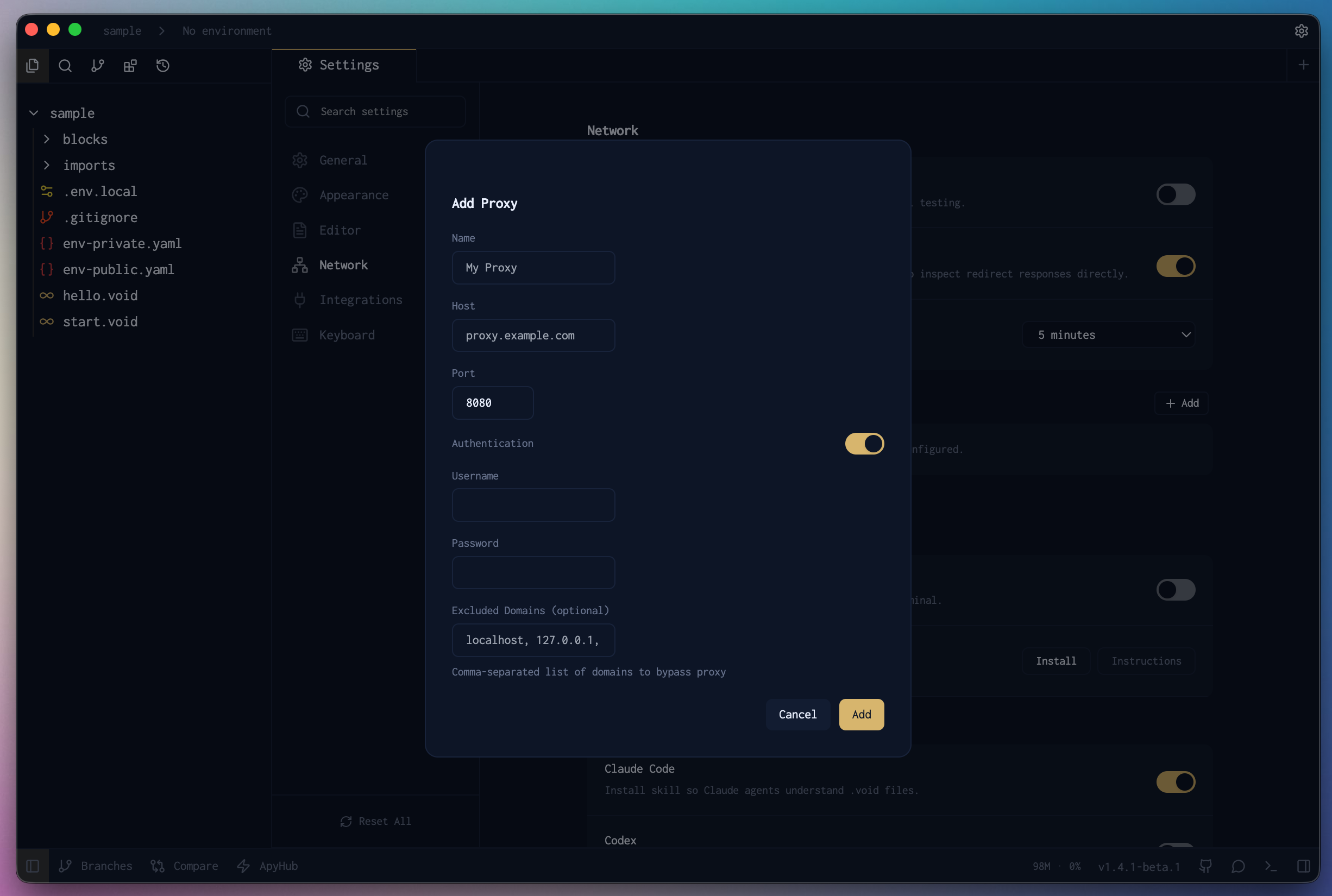
- Proxy host and port
- Authentication credentials (if required)
- Bypass rules for specific domains
Integrations
Command Line Interface
Voiden has a CLI that lets you open projects, files, and directories straight from your terminal. Once installed, your terminal and Voiden work together seamlessly.
There are two options right inside the settings:
- Install — Sets up the CLI on your machine in one click. After that, you can use the
voidencommand from anywhere in your terminal. - Instructions — Prefer doing it yourself? This walks you through the full manual setup.
Want to see everything the CLI can do? Check out the Voiden CLI docs.
Terminal Enhancement
- Enable Nerd Fonts — Turns on enhanced icon support in the built-in terminal for a richer, more visual experience.
AI Skill
Voiden can generate a skill file that teaches your AI assistant everything it needs to know about the .void format. Once enabled, your assistant can read, write, and generate valid .void files right alongside you.
Head over to the AI Skill settings to set it up.
Keyboard Shortcuts
Voiden comes with a full set of keyboard shortcuts to keep your hands on the keyboard and your workflow moving fast.
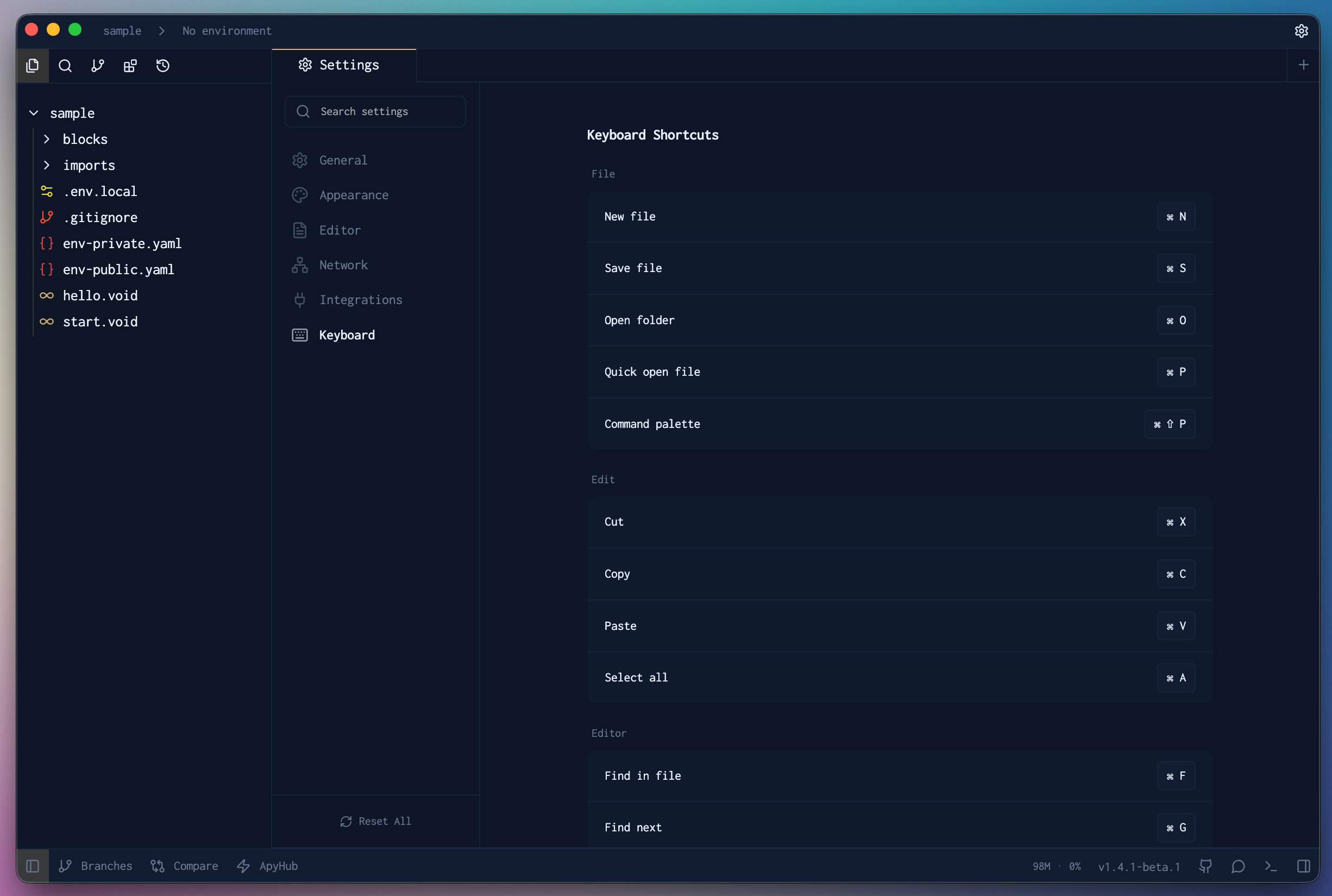
- File Operations — Create, save, and manage
.voidfiles - Navigation — Jump quickly between sections and requests
- Execution — Run requests and tests
- Editing — Code completion, formatting, and text edits
- View Controls — Toggle panels and adjust layout