Git Integration GUI
The Git Integration GUI in Voiden provides a visual, approachable way to work with Git repositories — without requiring you to memorize commands or live in the terminal. It allows you to view changes, stage files, create commits, manage branches, and track history through a clean and intuitive interface.
The Git GUI is designed to make version control easier to understand while still respecting Git's core concepts. Whether you're new to Git or an experienced developer who prefers visual clarity, the Git GUI helps you stay in control of your codebase.
Why a Git GUI Matters
Git is powerful, but it can also feel overwhelming — especially when things go wrong. A GUI helps bridge that gap by making Git's behavior visible and predictable.
Using a Git GUI helps you:
- Understand what's changing before you commit.
- Avoid accidental commits or lost work.
- Reduce mistakes caused by complex commands.
- Learn Git concepts visually and incrementally.
- Work faster by seeing the full context at once.
In Voiden, the Git GUI is built to support thoughtful, review-driven workflows rather than rushed command execution.
Core Concepts You'll See in the Git GUI
Repository Status
Shows the current state of your working directory:
- Modified files.
- New (untracked) files.
- Staged changes.
- Clean working tree.
This gives you instant feedback on what Git sees right now.
File Changes (Diff View)
View exactly what changed in each file:
- Line-by-line additions and deletions.
- Clear separation between staged and unstaged changes.
- Visual comparison with previous versions.
This helps you commit only what you intend to.
Initializing a Git Repository
Before you can use any Git features, your project needs to be a Git repository. If you're starting fresh or opening a folder that isn't tracked by Git yet, Voiden makes it easy to get started — no terminal required.
How to Initialize
- Open your project folder in Voiden.
- Navigate to the Git panel in the sidebar.
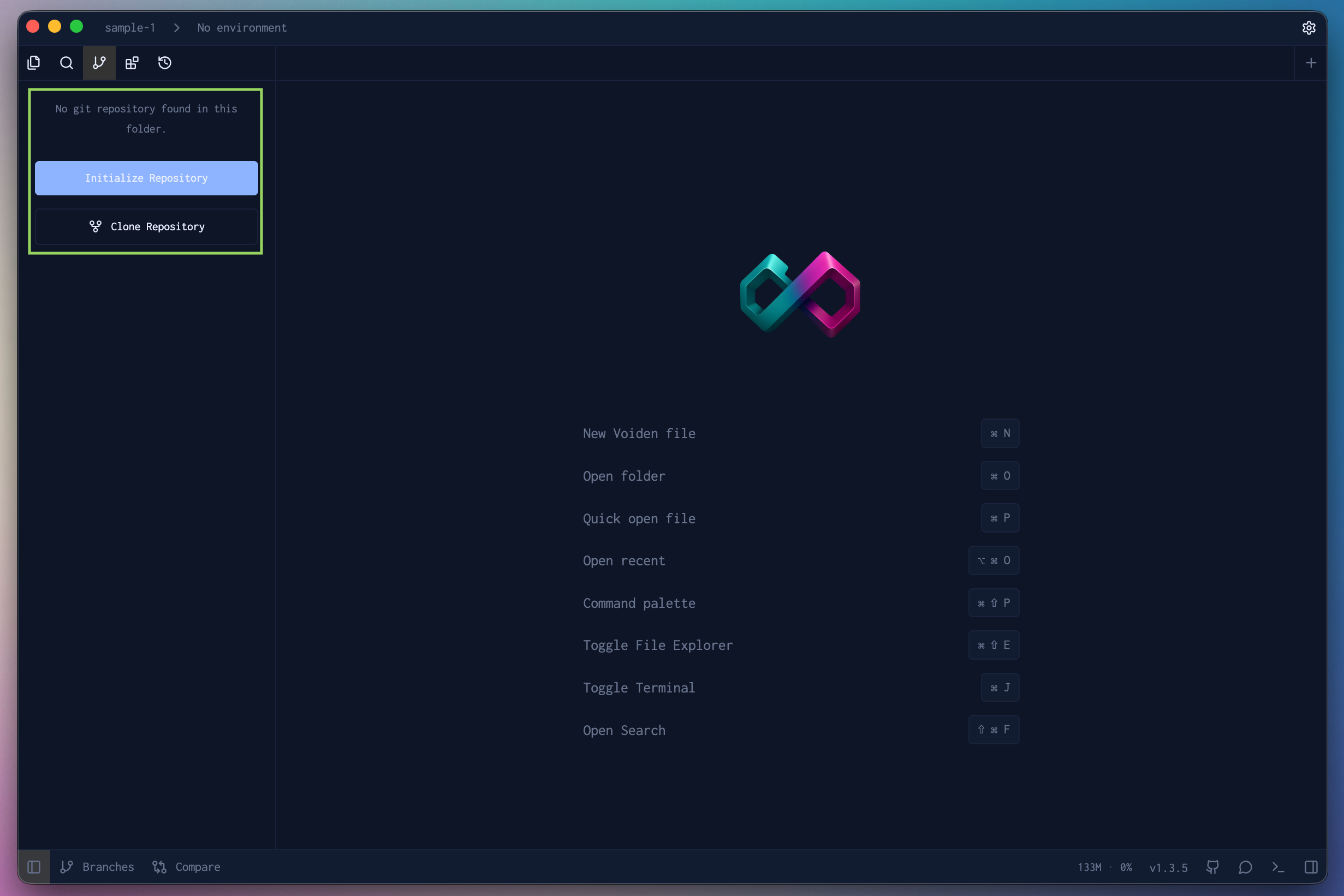
- If the folder isn't a Git repository, you'll see an Initialize Repository button.
- Click it — Voiden runs
git initbehind the scenes and sets up everything for you.
Once initialized, Voiden immediately starts tracking your files and the Git panel comes to life with your current working directory status.
Reviewing Changes
One of the most useful habits in Git is reviewing your changes before committing them. Voiden makes this easy with a built-in diff viewer that shows you exactly what's been added, removed, or modified — line by line.
To review your changes:
- Open the Git panel from the sidebar.
- Click on any modified file in the changes list.
- The diff viewer opens, showing what's changed in that file.
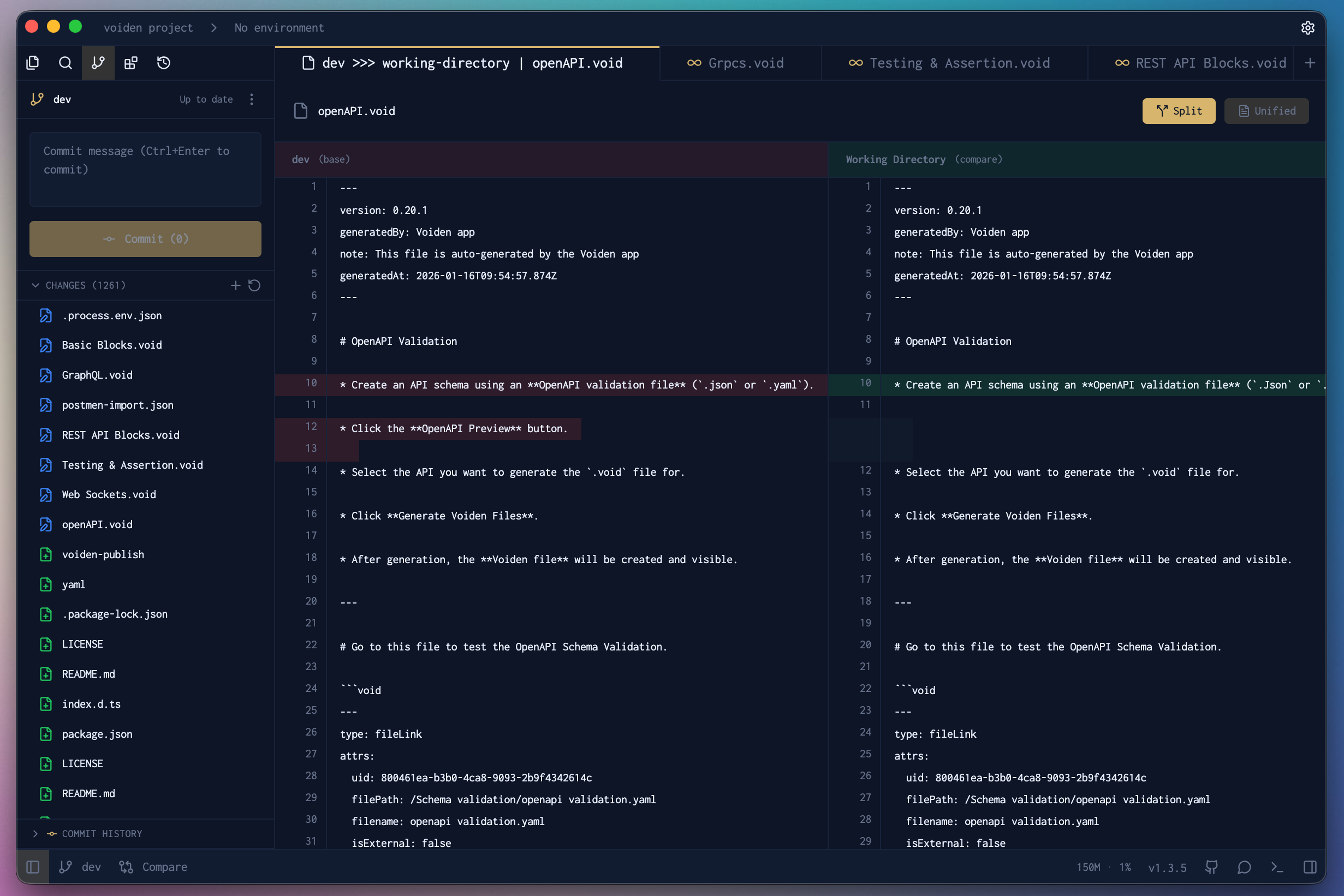
You'll see:
- Green lines — content that was added.
- Red lines — content that was removed.
- Unchanged lines — context around the edits, so you know where you are in the file.
This gives you full visibility before you stage or commit anything.
Diff Viewer Modes
Voiden gives you two ways to look at your diffs — pick whichever makes more sense to you.
Unified View
The default view. Changes are shown in a single column, with additions and deletions interleaved in context.
- Great for a quick read-through.
- Easy to follow when changes are small or scattered.
- Shows the full file flow without jumping between columns.
Split View
Shows the before and after versions of a file side by side in two columns.
- Ideal for comparing larger blocks of changes.
- Makes it easy to see what was there before and what replaced it.
- Helpful when you want to understand the full context of a change.
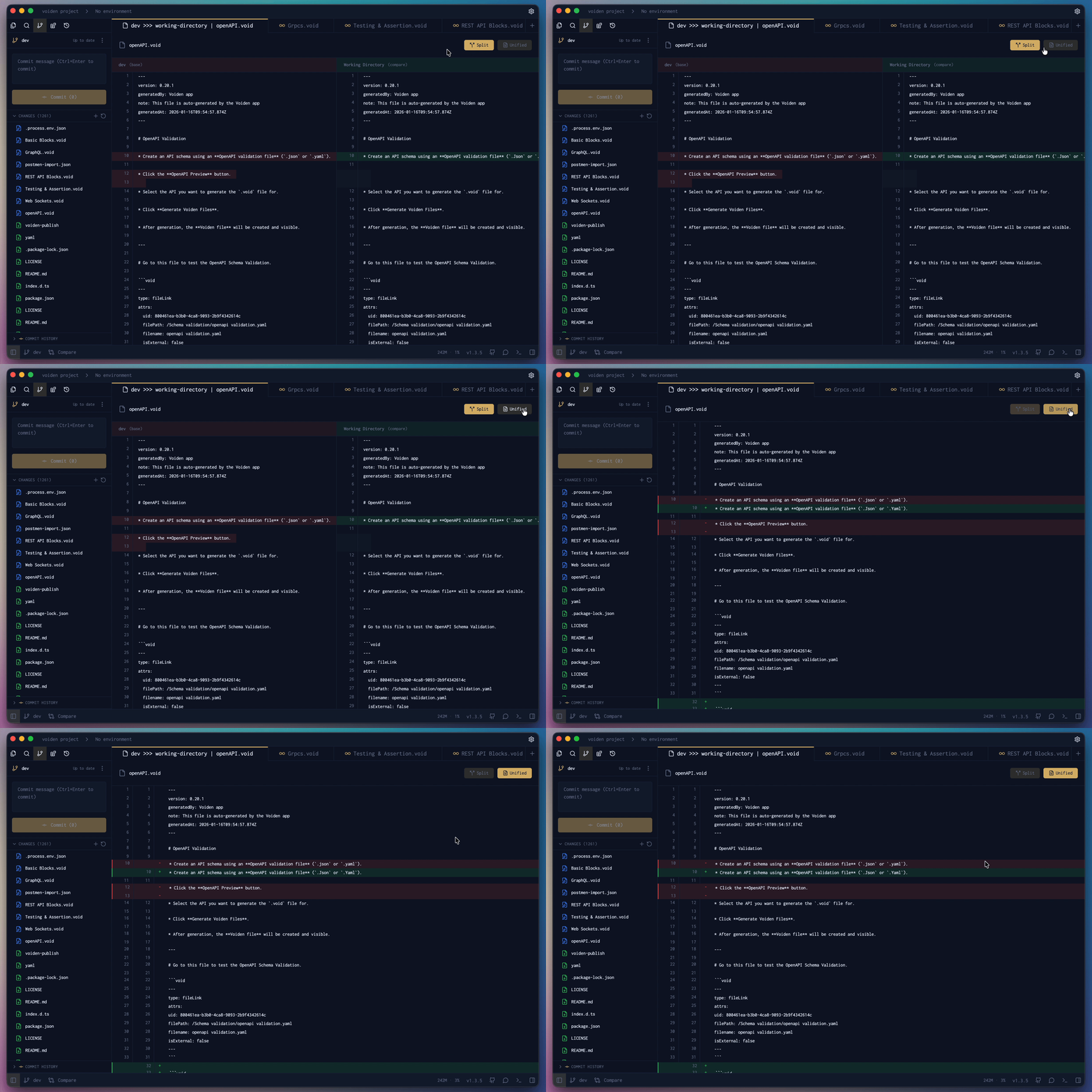
You can toggle between Unified and Split view directly in the diff viewer toolbar. The switch is instant — your position in the file is preserved so you don't lose your place.
Git Panel Actions
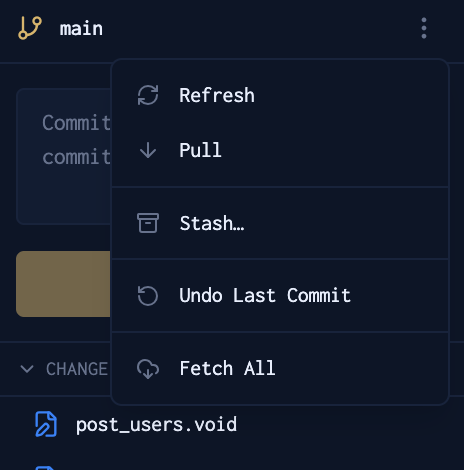
You don't need to open a terminal for everyday Git tasks. The Git panel in Voiden puts the most common actions right at your fingertips — just a click away.
Refresh Changes
Not seeing your latest edits in the panel? Hit Refresh and Voiden will rescan your working directory and show you exactly what's changed. This is especially handy if you've been editing files outside of Voiden — through another editor or the terminal — and want the panel to catch up.
Pull Changes
Think of this as syncing up with your team. Pull Changes brings in the latest commits from your remote branch and merges them into your current local branch, so you're always working with the most up-to-date code.
Make it a habit to pull at the start of each session — it keeps your work in sync and helps you avoid unnecessary merge conflicts later.
Fetch All
Want to see what's happening across the repository without committing to a merge? Fetch All downloads the latest updates from all your remotes and shows you what's out there — without touching your current branch. It's a safe way to stay informed before deciding what to merge.
Stash
Not ready to commit but need to step away or switch branches? Stash quietly saves your uncommitted changes on the side so your working directory is clean. When you're ready to pick up where you left off, just reapply your stash from the Git panel.
- Great for quick context switches without losing progress.
- Your stashed changes are safe and easy to restore whenever you need them.
Undo Last Commit
Made a commit too soon — or just want a do-over? Undo Last Commit rolls back your most recent commit and puts your changes back into the working directory, exactly as they were. Nothing is lost; only the commit itself is undone.
Under the hood, this runs git reset --soft HEAD~1 — your changes stay intact, only the commit is removed.
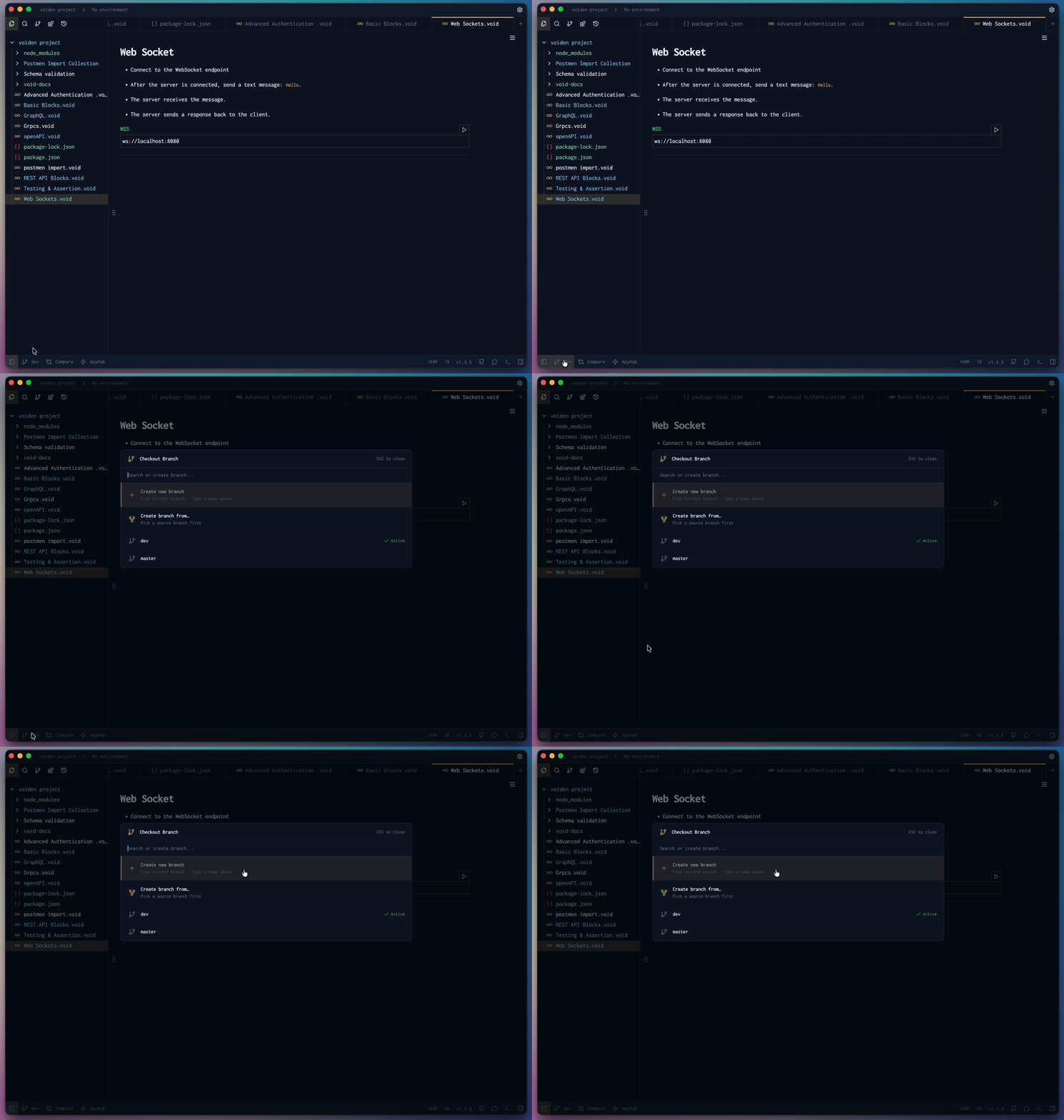
Checkout Branches
Branches are at the heart of any Git workflow — they let you work on features, fixes, or experiments without affecting the rest of your codebase. Voiden makes branch management straightforward, right from the Git panel.
Viewing Your Branches
The Git panel shows you all your branches in one place — both local and remote. You can see at a glance which branch you're currently on, and browse everything else that's available without running a single command.
Switching Branches
Ready to jump to a different branch? Just click on any branch in the list and select Checkout. Voiden switches your working directory to that branch instantly.
Make sure your current changes are committed or stashed before switching branches — otherwise Git may prevent the switch to protect your work.
Creating a Branch
Voiden gives you two flexible ways to create a branch — whether you're starting fresh or branching off from a specific point in your history.
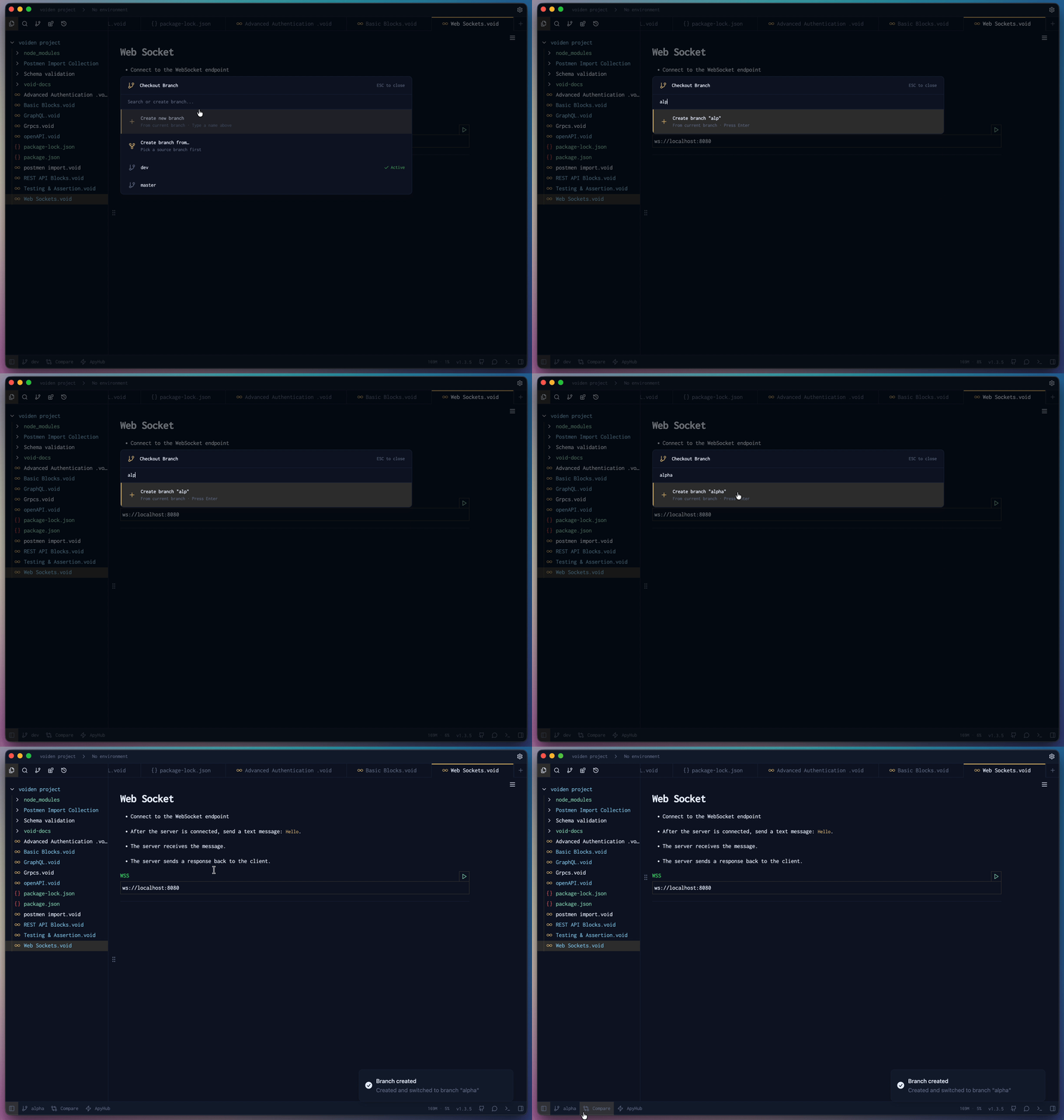
Create a new branch
Need a fresh branch to start something new? You can create one directly from the Git panel:
- Click the Create Branch option in the branch menu.
- Give your branch a name.
- Hit Create — Voiden creates the branch and checks it out automatically, so you're ready to go right away.
Create a branch from another branch
Sometimes you need to branch off from somewhere other than your current branch — for example, starting a hotfix from main instead of your feature branch. Voiden makes this just as easy:
- Select the branch you want to branch off from in the branch list.
- Choose Create Branch From.
- Enter a name for your new branch.
- Hit Create — Voiden creates the new branch from the selected one and checks it out for you.
This gives you precise control over where your work starts, without having to switch branches first.
Comparing Branches
Before you merge, it's always a good idea to know exactly what you're bringing in. Voiden's branch comparison lets you diff any two branches directly from the Git panel — no terminal, no guessing.
How to compare branches:
- Open the Git panel from the sidebar.
- Find the branch you want to compare in the branch list.
- Select Compare with Current Branch — Voiden will immediately show you a full diff between the two branches.
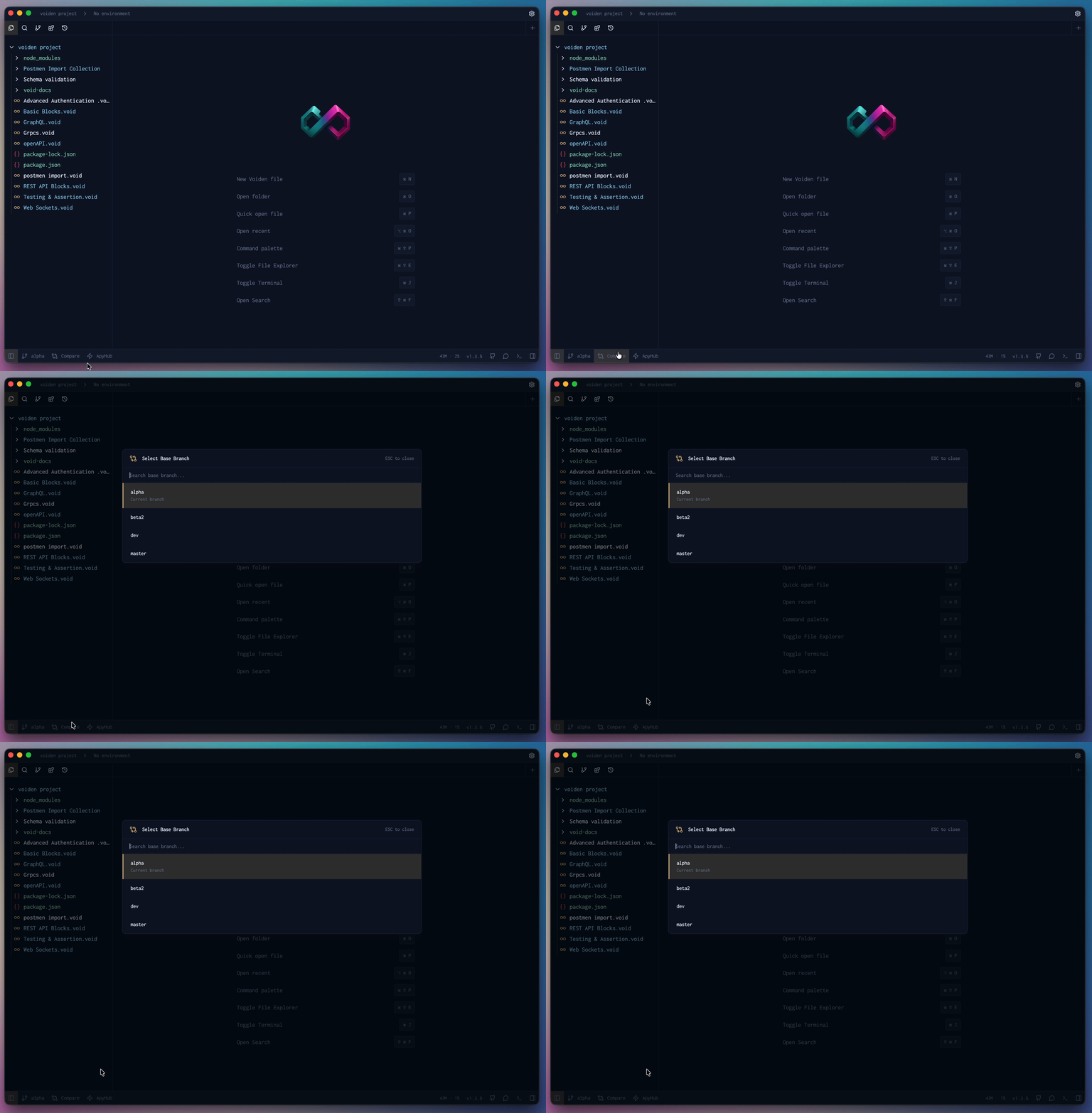
What you'll see:
- Every file that's different between the two branches.
- Line-by-line additions and deletions within each file.
- A clear view of what your current branch has that the other doesn't — and vice versa.
When is this useful?
- Before merging a feature branch into
main— to review everything that's about to land. - After a teammate pushes to a shared branch — to quickly catch up on what changed.
- When you're unsure how far ahead or behind a branch is — to get a clear picture before deciding your next move.
It's a simple but powerful way to stay in control of your codebase and avoid surprises at merge time.
Summary
Voiden's Git GUI covers the full version control lifecycle — from setting up a repository to reviewing changes, managing branches, and collaborating with your team. Every feature is designed to give you clarity and control, so you always know what's happening in your project and can act with confidence.